


 You can use this page for your photo gallery or make numerous galleries from
this page. The instructions for this
You can use this page for your photo gallery or make numerous galleries from
this page. The instructions for this
Photo Gallery
We thought you'd like a unique way to show off your pictures! Just mouse over the gallery below to have the pictures come into view!

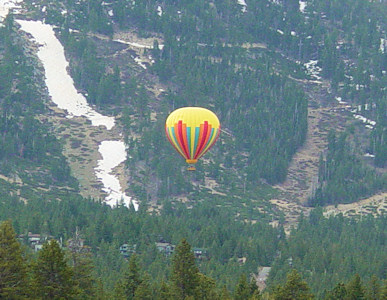






Instructions for adding photos to the gallery.
- Pick out your images and resize them to 400 pixels by 300 pixels.
- Save your images in the gallery folder located in the images folder in the web. When you save your images, make sure that they contain no capital letters or spaces. I've named the images in this file image1.jpg, image2.jpg and so on. For the first 11 images in the folder, you can just name them as I've named them (images 1-11) and overwrite my file or you can name them what you'd like.
- Open your page to the code view and find this line:
<img src="images/gallery/image1.jpg" alt="#1" title="#1" /></a></li>
This code means that the image1(my first hot air balloon ride) is located in the gallery folder that is inside the images folder. The name of the first image is "image1.jpg". The "alt=#1" is the alternate name for the image. The title="#1"is the name or title of the image that shows up when you mouse over the image. - If you have more than 11 images, you will need to copy the code below
and change it to add another image. The code for the next image would be:
<li><a href="#nogo">
<img src="images/gallery/image12.jpg" alt="#12" title="#12" /></a></li> - or if you prefer to name your images, it might look something like this:
<li><a href="#nogo">
<img src="images/gallery/mother.jpg" alt="mother" title="Mother and Granddaughter" /></a></li> - Paste the code in the code view directly under the others.
- You've just added your own images!
- If you're adding quite a few images, you'll have to increase the height
of the gallery. Find the lines below in the css file (The css file will be
named the same number as the template number and is usually the last file in
the folder... example: tnt600.css). Just continue to increase the height
until it looks correct to you when you preview the page in your browser.
#gallery {
padding:0;
margin:0;
list-style-type:none;
overflow:hidden;
width:400px;
height:600px; YOU WILL CHANGE THIS NUMBER TO A HIGHER NUMBER.
border:1px solid #888; - Still confused? Call me, I'll walk you through it!
 You'll
have the gallery instructions down in no time and you'll be adding new galleries
for your guests to see!
You'll
have the gallery instructions down in no time and you'll be adding new galleries
for your guests to see!